
More actions
No edit summary Tag: 2017 source edit |
Tag: 2017 source edit |
||
| Line 31: | Line 31: | ||
{{Component/section| | {{Component/section| | ||
{{Component/group| | {{Component/group| | ||
{{ | {{ComponentEmpty | ||
|port = {{Item|emerald}} | |port = {{Item|emerald}} | ||
|title = '''Trading''' | |title = '''Trading''' | ||
|subtitle = {{Key press|Left click}} or {{Key press|Right click}} the sign of a shop. Enter into chat the quantity of items you'd like to trade. Be mindful of shops trading items in bulk; In this case, enter how many bulks you'd like to trade. | |subtitle = {{Key press|Left click}} or {{Key press|Right click}} the sign of a shop. Enter into chat the quantity of items you'd like to trade. Be mindful of shops trading items in bulk; In this case, enter how many bulks you'd like to trade. | ||
}} | }} | ||
ComponentEmpty | |||
|port = {{Item|emerald_block}} | |port = {{Item|emerald_block}} | ||
|title = '''Direct trading''' | |title = '''Direct trading''' | ||
|subtitle = {{Key press|Shift}}+{{Key press|Left click}} the sign of a shop. The items will be sold directly without confirmation. Only works for shops buying items off players. | |subtitle = {{Key press|Shift}}+{{Key press|Left click}} the sign of a shop. The items will be sold directly without confirmation. Only works for shops buying items off players. | ||
}} | }} | ||
{{ | {{ComponentEmpty | ||
|port = {{Item|command_block}} | |port = {{Item|command_block}} | ||
|title = '''Shop control''' | |title = '''Shop control''' | ||
|subtitle = {{Key press|Left click}} the container of a shop you manage to open the control panel for it. Here you can modify various aspects such as buy/sell mode, stack size, and price. | |subtitle = {{Key press|Left click}} the container of a shop you manage to open the control panel for it. Here you can modify various aspects such as buy/sell mode, stack size, and price. | ||
}} | }} | ||
{{ | {{ComponentEmpty | ||
|port = {{Item|chest}} | |port = {{Item|chest}} | ||
|title = '''Inventory''' | |title = '''Inventory''' | ||
Revision as of 01:41, 1 September 2024
 | |
| QuickShop | |
|---|---|
| Server | Economy plugin — on Survival |
| Main command | /shop |
| Sub commands | 21 |
| Access | |
| Requirements | Any rank |
| Custom | No |

QuickShop, or simply Shops, is an economy plugin supported within the Survival server on Prism Party. QuickShop allow players to create shops out of barrels, chests, and shulker boxes to trade items with others on the server using Gems. Outside of Auctions, shops are the primary means by which players trade items via the economy on Prism Party.
All players on Prism Party are able to create container shops so long as they can afford the ₲100 shop-creation fee. There are no Levels or Rank requirements, nor quantity limits to consider. Still, players are advised to be at least Level 1 prior to making shops as Bolt is used to protect shop containers from theft and is not available to all players until the first level up.
Barring temporary worlds, players are able to create shops anywhere they have permission to build. Thus, it it common to find collections of shops in player-made markets scattered throughout the world. These self-made markets are often accessible using the Player Warps plugin on the server, or by using the integrated /finditem command.
Outside of player-made markets in The Overworld, there exists a large collection of player shops within the Shopping District in Spawnia. The Shopping District is the premier location for player shops on the Survival server and is where a vast majority of shops and markets can be found. While all players are allowed to shop at the Shopping District, only those Level 5 or higher may open a store there.
QuickShop is a core plugin on Prism Party. Generally speaking, this means that the network can't update unless this plugin is also updated and working. Bugs impacting this plugin are considered severe.
Features[edit]
- Buy or sell items to other players to collect revenue
- Split shop earnings equally amongst trusted users
- Globally search for items sold by shops all over the world
- Preview items before purchase
- Sell or purchase items in bulk
- View transaction history at shops
Using shops[edit]
Trading
Left click or Right click the sign of a shop. Enter into chat the quantity of items you'd like to trade. Be mindful of shops trading items in bulk; In this case, enter how many bulks you'd like to trade.
ComponentEmpty
Shop control
Left click the container of a shop you manage to open the control panel for it. Here you can modify various aspects such as buy/sell mode, stack size, and price.
Inventory
Right click the container of a shop you manage to open the inventory of the shop. This is the same as opening a container in vanilla Minecraft. Ensure your chest is locked to prevent players from doing the same.
}}
Commands[edit]
 [Square brackets] indicate optional parameters, while <angle brackets> indicate required parameters.
Examples[edit]
Notes[edit]
- Be mindful of the text shown on shop signs. The text on the sign indicates the action the player is performing by interacting with the shop.
- This behavior is opposite to shop administrative commands that are from the perspective of the shop itself. For instance, a shop in "sell" mode (selling items to the player) would display "buy" on the shop sign since that is the action players are performing at that shop.
- Shops are not protected by the plugin. Instead, players must use Bolt or Claims to lock their shop containers from theft.
- Shops created in the Shopping District are automatically protected.
- A single shop cannot both sell and buy items. However, a double-chest can host two shops that both sell and purchase items from players in order to accomplish this.
- Players can create shops out of barrels, chests, trapped chests, or any shulker box variant.
- Barrels are preferred.
Gallery[edit]
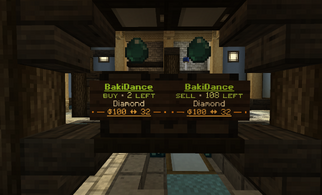
An example of a shop that sells and buys items
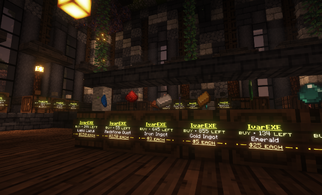
A collection of shops at IvarEXE's pwarp
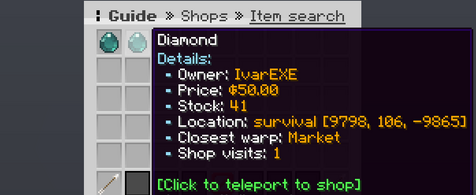
The shop search menu
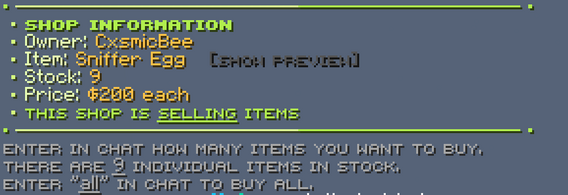
The shop information screen in chat


